Library Management
Target List
Feature Description
Definition
A resource pool can be created based on the target information about a certain number of persons and the information can be managed by attribute (such as the gender) group.
Customer Benefits
The system automatically performs target alert and target search, reducing labor costs, shortening service processing time, and enhancing service efficiency.
Application Scenario
Campus management personnel create a target list to identify the entry and exit of external persons.
Requirements
NE |
Version Requirement |
License Requirement |
Function |
|---|---|---|---|
HWT-IVS1800-D /HWT-IVS1800-E |
11.1.0 and later versions |
N/A |
Provides the target list function. |
Application Limitations
None
Feature Configuration
Scenario Description
Client |
Feature Support |
Reference |
|---|---|---|
LDU |
Supported |
For details, see Procedure (on the LDU). |
iClient S100 |
Supported |
For details, see Procedure (on the iClient S100). |
Application Limitations
- The LDU supports only target blocklists.
- When the function of authorizing intelligent target analysis is disabled for the HWT-IVS1800, the LDU does not support any operations on lists. The iClient S100 allows users to query and delete the device's lists, but does not allow users to add or modify lists.
- You are advised to import data records to the target list in batches. Note that in scenarios when 300,000 records are imported to the target list, the VA module of the system will be in peak hours for about 8 to 10 hours. To ensure that system resources are available, you are advised to import data to the target list in batches during off-peak hours.
Prerequisites
- You have enabled the target recognition function.
For details, see Public Configurations.
- LDU
- A removable disk (such as a removable hard disk or USB flash drive) that uses the FAT32, NTFS, or exFAT file system is available.
To check the file system of a removable disk, perform the following steps:
- Insert the removable disk into the USB port of the computer.
- Right-click the removable disk and choose Properties from the shortcut menu.
- Click the General tab.
- Check whether the file system is FAT32, NTFS, or exFAT.
- Target images have been named as required and stored on a removable disk (such as a removable hard disk or USB flash drive).
- Batch import: Select a folder to upload the images in it. The images are named in Name_ID number_ID type_Gender_Nationality_Occupation format. Table 4-277 illustrates the naming format.A maximum of 16,000 target images can be stored in a single folder on a removable disk (such as a removable hard disk or USB flash drive) of the FAT32 or FAT file system. If more than 16,000 target images need to be imported, create multiple folders and import the images by folder.Table 4-277 Naming format requirements
Naming Element
Description
Name
- Consists of 1–255 characters.
- Cannot start with a special character.
- Contains at least one of the following character types:
- Letters
- Digits
- Special characters including only space characters and hyphens (-)
ID number
- Consists of 1–255 characters.
- Contains at least one of the following character types:
- Letters
- Digits
- Special characters: ( )
ID type
- 0: ID card
- 1: passport
- 2: student card
- 3: military ID card
- 4: driver's license
- 5: others
Gender
- 0: male
- 1: female
Nationality
- Consists of 1–255 characters.
- Contains at least one of the following character types:
- Letters
- Digits
- Space characters
Occupation
- Consists of 1–255 characters.
- Contains at least one of the following character types:
- Letters
- Digits
- Space characters
- Upload one by one: The image is named after the name.
 Target images in the target list must meet the following requirements:
Image format: Only .bmp, .dib, .jpe, .jpeg, .jpg, and .png images are supported.
Image size: The recommended image size is 35 KB to 200 KB. The size of a single image cannot exceed 720 KB.
Image quality: The target in the image must be clear. The image must be a grayscale image of eight bits or more.
Resolution: The recommended target resolution ranges from 80 x 80 to 200 x 200 pixels. The eye spacing must be greater than or equal to 60 pixels, ideally 90 pixels or more.
Brightness and contrast: The ambient illumination must be at least 300 lux. Use diffuse lighting for the best effect. The contrast should be moderate, and the face should not be shadowed. Avoid backlight and light reflection, and use a moderate exposure.
Posture: proper posture; look straight ahead; angle range: –10° to +10° (for yaw angles, pitch angles, and roll angles)
Occlusion: features (such as eyebrows, eyes, mouths, and noses): not covered by objects such as hair, masks, accessories, or glasses; glass lens: clear, colorless, and non-reflective (for the best effect)
Face: completely captured, well-defined, unretouched, and with light or no makeup
Countenance: neutral expression with eyes open and natural mouth gestures
- Encoding requirement: The characters in target image names must be encoded in GBK or UTF-8 format. If the encoding format is not GBK or UTF-8, correct it. Target image names encoded in other formats will be displayed in garbled characters on the LDU.
- Batch import: Select a folder to upload the images in it. The images are named in Name_ID number_ID type_Gender_Nationality_Occupation format. Table 4-277 illustrates the naming format.
- A removable disk (such as a removable hard disk or USB flash drive) that uses the FAT32, NTFS, or exFAT file system is available.
- On the iClient S100, target lists are classified into two types: blocklist and trustlist. Table 4-278 describes the application scenarios and functions of these types of target lists.
Table 4-278 Target list classification
List Type
Application Scenario
Blocklist
Used in scenarios such as swing gates, security gates, and straight-through pedestrian walkways. The system generates an alarm once a blocklisted target is detected.
Trustlist
Used in scenarios such as swing gates and security gates. The system generates an alarm once a trustlisted target is detected.
Procedure (on the LDU)
- Insert the removable disk into the USB port.
- Log in to the LDU as the admin user. (
 Logging In to the LDU)
 - Right-click on the desktop and choose Intelligent Application > Library > Target List.
- Configure a target list, as shown in Figure 4-314.
Table 4-279 describes the parameters.
- Add target information.
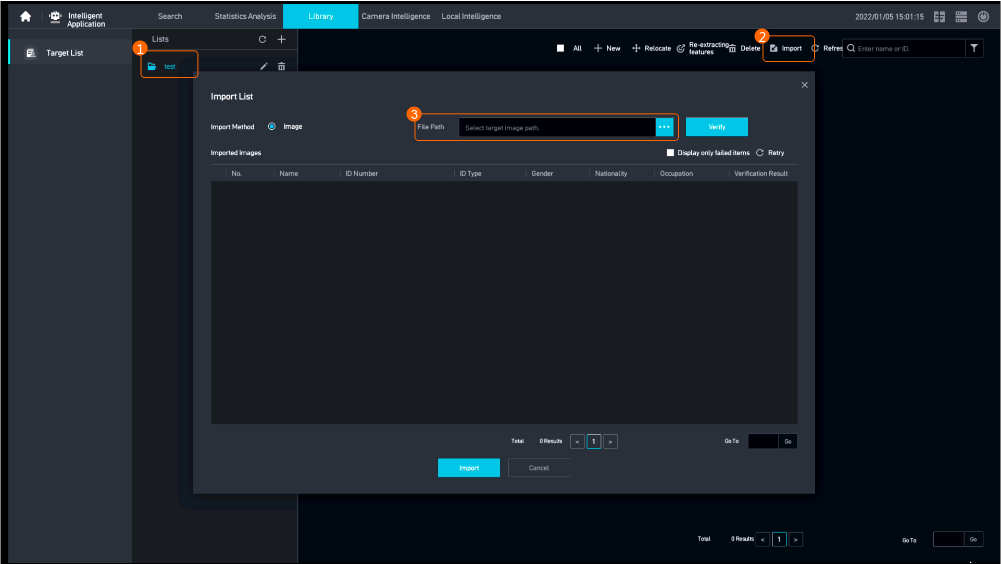
- Import target images, as shown in Figure 4-315.
Table 4-280 describes the parameters.
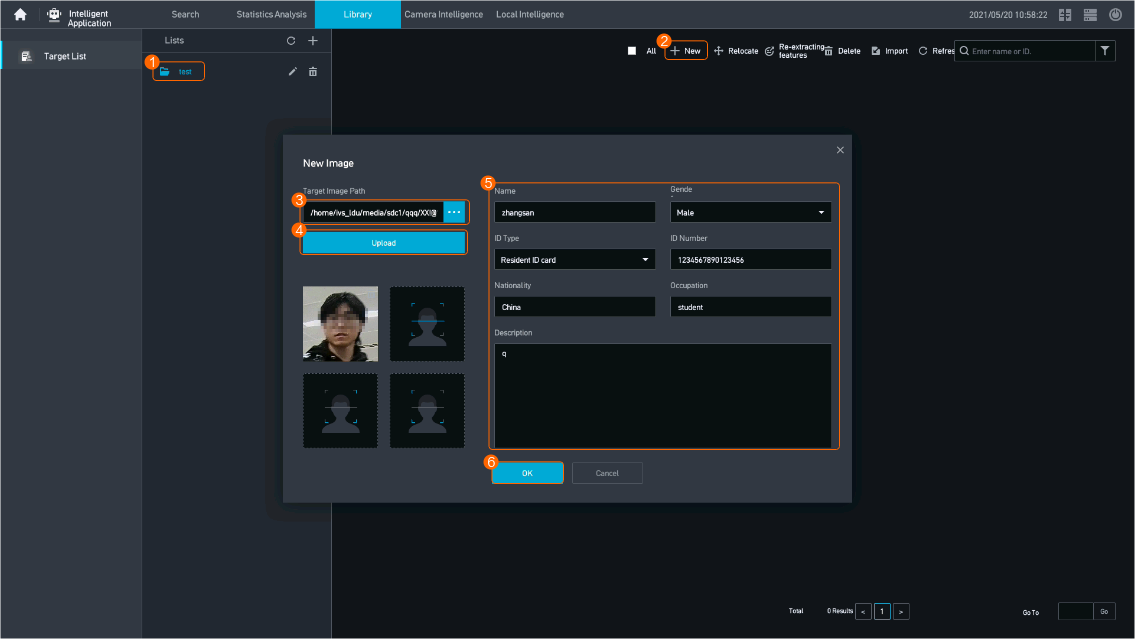
- Add targets one by one, as shown in Figure 4-316.
Table 4-281 describes the parameters.
Table 4-281 Parameter descriptionParameter
Setting
Target Image Path
Select a target image stored on the hard disk.
Name
Set these parameters based on the site requirements.
Gender
ID Type
Set these parameters based on the site requirements.
ID Number
Nationality
Set these parameters based on the site requirements.
Occupation
Description
Enter target description as required to identify the target.
- Import target images, as shown in Figure 4-315.
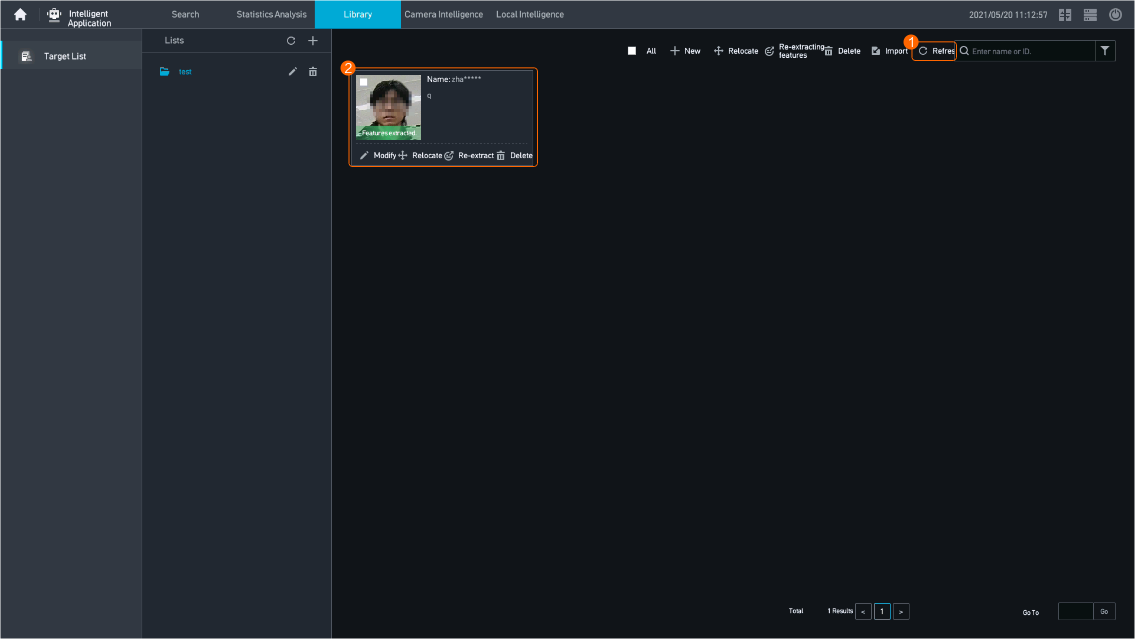
- Click Refresh to refresh the current page and view the target feature extraction status. If information shown in Figure 4-317 is displayed, the target is added successfully.
Procedure (on the iClient S100)
- In versions earlier than V3.0.0, target list information can be synchronized from the iClient S100 to the HWT-IVS1800 but cannot be synchronized from the HWT-IVS1800 to the iClient S100.
- In V3.0.0 or later versions, if no plug-in is installed, target list information can be synchronized from the iClient S100 to the HWT-IVS1800 or from the HWT-IVS1800 to the iClient S100.
- In V3.0.0 or later versions, if the plug-in is installed, target list information can be synchronized from the iClient S100 to the HWT-IVS1800 but cannot be synchronized from the HWT-IVS1800 to the iClient S100.
- Create a target list.
- On the iClient S100 home page, choose .
- Right-click an IVS1800 device and choose Target Library.
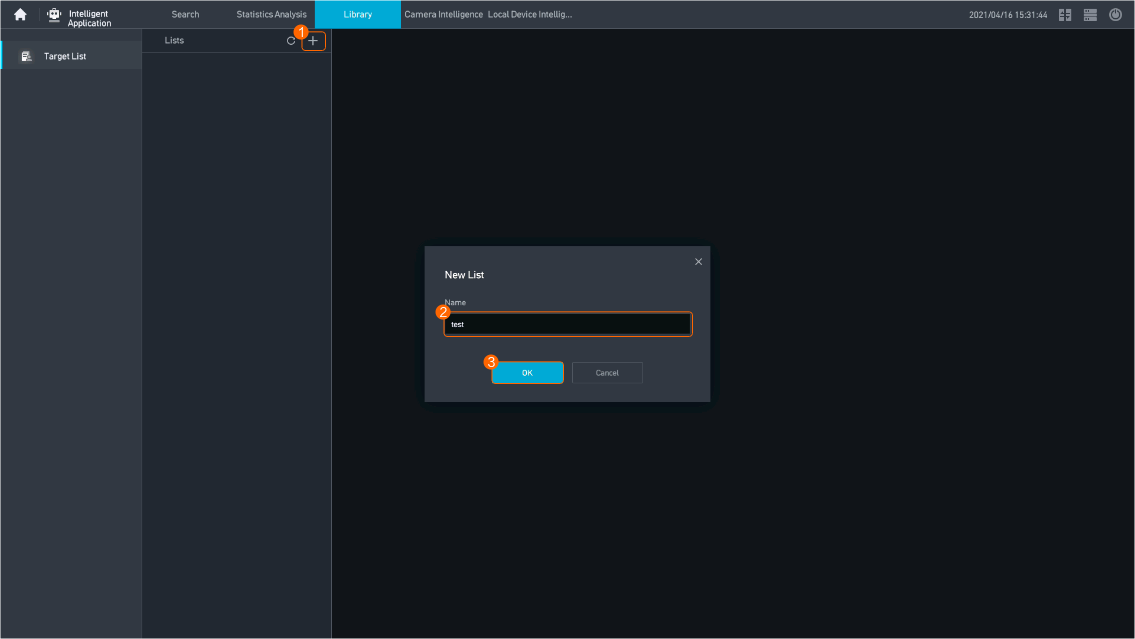
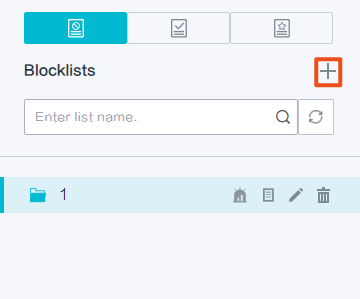
- On the list page, click + and create a target list, as shown in Figure 4-318. Click OK.
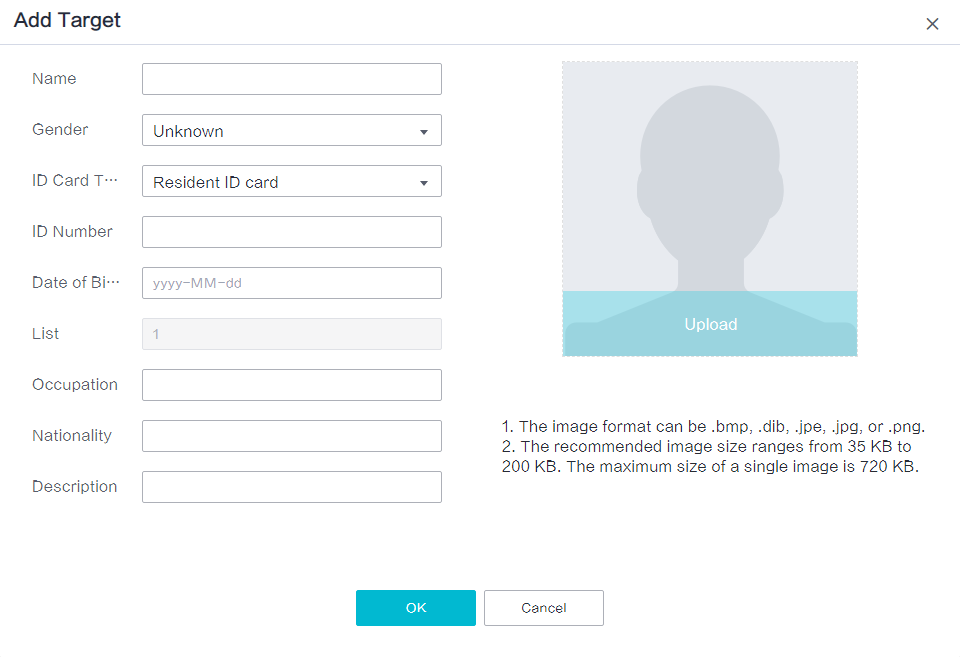
- Click New. The Add Target dialog box is displayed for you to add target information to the target list on the device, as shown in Figure 4-319.
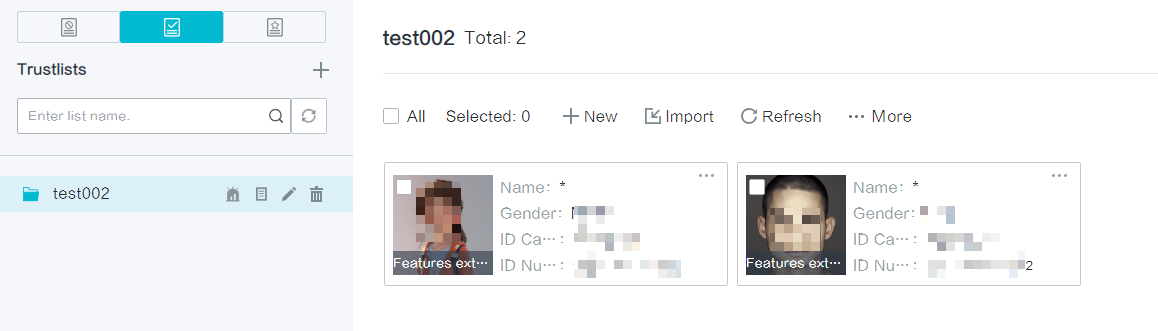
- Upload a target image as required, enter target information, and click OK. The target information is successfully added to the target list and synchronized to the main device, as shown in Figure 4-320.
Remarks
- Images in JPG format can be imported to the LDU, and features can be successfully extracted from such images. Some imported JPG images may fail to be displayed or may be displayed improperly on the LDU. However, the improperly displayed images can still be used for alert tasks.
- Images in JPG format can be imported to the iClient S100, and features can be successfully extracted from such images. Images in lists can be properly displayed on the iClient S100. Some imported JPG images may fail to be displayed or may be displayed improperly on the LDU. However, the improperly displayed images can still be used for alert tasks.
Feature Verification
Procedure
- Log in to the LDU as the admin user. ( Logging In to the LDU)
- Right-click on the desktop and choose Intelligent Application > Library > Target List.
- Check the feature extraction status of the target records.
- Feature extracted: The target feature extraction has been completed and extracted features can be used for services such as target search.
- Feature extracting: The target features are being extracted.
- Failed to extract features: The target features cannot be extracted.
- Ensure that the camera or HWT-IVS1800 has intelligent capabilities. For details about the scenarios requiring intelligent capabilities, see Feature Verification.
- If the HWT-IVS1800 intelligent capability is used, ensure that the current services do not reach the upper limit of the service specifications. Otherwise, the feature extraction will fail.
Assume that the current HWT-IVS1800 whose service specification is 4-channel target recognition at most, has been executing 4-channel target recognition tasks, if you add target records to the target list in this case, computing power is insufficient for extracting target features, causing feature extraction failure. In this scenario, you are advised to stop one channel of target recognition task and then extract target features. After target features are extracted, restart the target recognition task.
Service specifications vary depending on device models. For details, see Product Specifications.
Vehicle Alert Reference List
Feature Description
Definition
A resource pool can be created based on the license plate information about a certain number of vehicles and the information can be managed by attribute (such as the province) group.
Customer Benefits
The system automatically performs vehicle alert and vehicle search, reducing labor costs, shortening service processing time, and enhancing service efficiency.
Application Scenario
Campus management personnel create a vehicle alert reference list to identify the entry and exit of external vehicles.
Requirements
NE |
Version Requirement |
License Requirement |
Function |
|---|---|---|---|
HWT-IVS1800-D /HWT-IVS1800-E |
11.1.0 and later versions |
N/A |
Provides the vehicle alert reference list function. |
Application Limitations
None
Feature Configuration
Scenario Description
Adding a Vehicle Blocklist
- On the iClient S100 home page, choose .
- Right-click an HWT-IVS1800 and choose Vehicle Library.
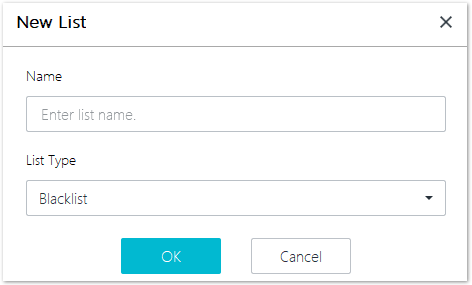
- Click New List. On the New List page that is displayed, set Name and List Type and click OK, as shown in Figure 4-321.
- Click OK again.
Adding Vehicle Records to a Vehicle List
You can use either of the following methods to add vehicle records to a vehicle blocklist: Adding Vehicle Records One by One and Importing Vehicle Records in Batches.
Method |
Application Scenario |
|---|---|
Through the Vehicle Library page |
You can directly add records of a vehicle whose image and information are available on the Vehicle Library page. |
Using the vehicle search result |
During vehicle search, if you want to add a vehicle in the search result to a vehicle list, view the vehicle details and add a vehicle image to the vehicle list. |
Adding Vehicle Records One by One
- On the iClient S100 home page, choose .
- Right-click an HWT-IVS1800 and choose Vehicle Library.
- Select a vehicle list and click New.
- (Optional) Click
 and upload a vehicle image. In the dialog box that is displayed, frame the vehicle, and click OK.
 You can upload images in JPG, JPEG, JPE, DIB, BMP, and PNG formats. The maximum size of a single image is 5 MB.
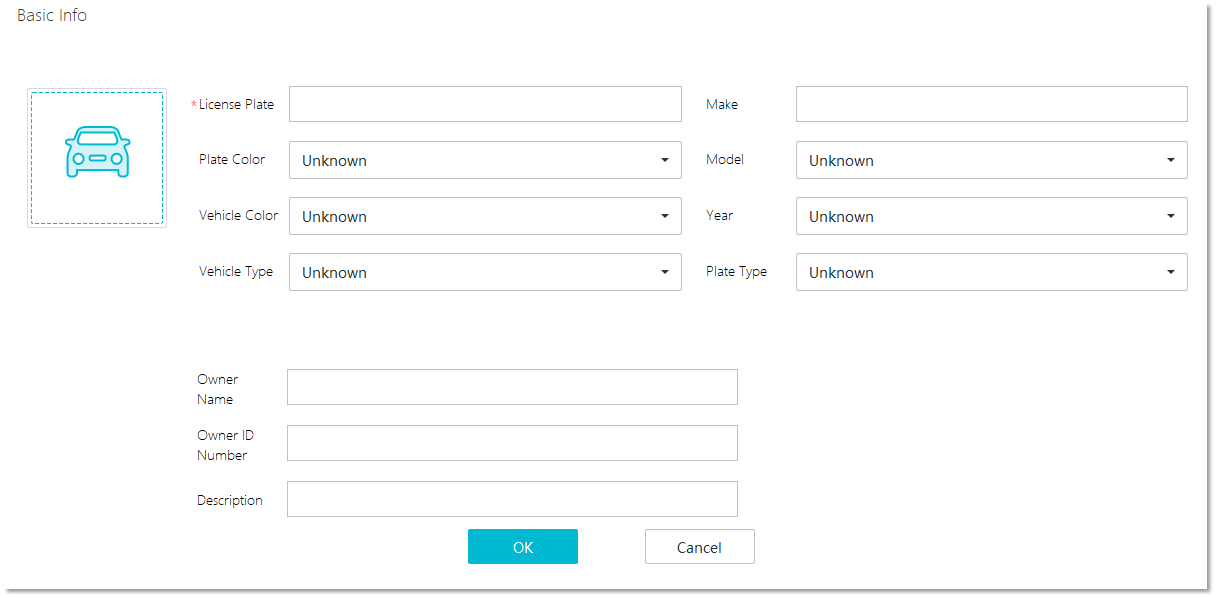
- Enter basic vehicle information, as shown in Figure 4-322.
- Click OK.
Importing Vehicle Records in Batches
- On the iClient S100 home page, choose .
- Right-click an HWT-IVS1800 and choose Vehicle Library.
- Select a vehicle list and click Import.
- Set Import Method to Template import, Batch import, or Quick import.
- Template import
- Click Download Template or Download Template (No Image) to download a template to the local computer.
If you click Download Template (No Image), you cannot fill in vehicle images in the downloaded template. Download either template based on the site requirements.
- Decompress the downloaded template package, open Image Batch Import Tool.xlsm, and fill in vehicle information in the template.
- If you click Download Template, you can click Read All Files in Target Folder in the downloaded template to automatically read image names. Vehicle images must be stored in the same folder as the Image Batch Import Tool.xlsm template and the .csv file generated later.
- The License Plate parameter in the template is mandatory. Otherwise, the .csv file cannot be generated.
- You can upload images in JPG, JPEG, JPE, DIB, BMP, and PNG formats.
- The maximum size of a single image is 5 MB.
- A maximum of 10,000 vehicle records can be imported at a time.
- If you select Allow duplicates, you can import records that already exist in the vehicle list.
- Click Generate CSV File in the template.
- Click
 next to the text box of Import file, select the local .csv file, and upload the file.
- Click Download Template or Download Template (No Image) to download a template to the local computer.
- Batch importClick
 next to the text box of Import file and select the folder where vehicle images to be uploaded are stored.
 - You can upload images by folder.
- You can upload images in JPG, JPEG, JPE, DIB, BMP, and PNG formats.
- The maximum size of a single image is 5 MB.
- You need to name vehicle images (.jpg file in this example) in License plate characters_Vehicle color_Vehicle type_License plate color_License plate type_Vehicle make_Vehicle model_Model year_Vehicle owner name_Vehicle owner ID number format. The License plate characters field is mandatory.
- Fields in the name of an image file must be separated by underscores (_). The values of Vehicle color, Vehicle type, License plate color, License plate type, Vehicle make, and Vehicle model must be numerical enumerated values. For details, see Image Batch Import Tool.xlsm that is locally extracted in 4.b.
- If fields that are neither header fields nor tail fields need to be ignored, you can use an underscore (_) to replace each of such fields. For example, if only the license plate characters and vehicle type can be identified for a vehicle image, the vehicle image can be named in License plate characters__Vehicle type.jpg format.
- If tail fields need to be ignored, delete them directly.
- If you select Allow duplicates, you can import records that already exist in the vehicle list.
- Quick importClick
 next to the text box of Import file and select the folder where vehicle images to be uploaded are stored.
 You can upload images in JPG, JPEG, JPE, DIB, BMP, and PNG formats. The maximum size of a single image is 5 MB.
The iClient S100 extracts fields from image names. Therefore, image names must meet the following requirements:- Image names must contain the License plate characters field.
- The License plate characters field must consist of 1 to 255 characters, including letters and digits.
- If you select Allow duplicates, you can import records that already exist in the vehicle list.
- Template import
- Click Import.
Searching for Vehicle Records from a Vehicle List
- Select a vehicle list on the left, select the License Plate, Owner ID Number, or Owner Name parameter, enter a value in the search box, and click
 to search for vehicle records.
 - Select a vehicle list on the left, click Advanced, set search criteria, and click Search to search for vehicle records, as shown in Figure 4-323.
- Double-click a record in the search result to view the vehicle details.
